Page 4 of 5

WhatsApp

WhatsApp is a free to download messenger app for smartphones. WhatsApp uses the internet to send messages, images, audio or video. The service is very similar to text messaging services, however, because WhatsApp uses the internet to send messages, the cost of using WhatsApp is significantly less than texting. You can also use Whatsapp on your desktop, simply go to the Whatsapp website and download it to Mac or Windows.

To download WhatsApp on an Android phone

  1. Go to the Google Play Store. If you have not used this before you will be prompted to log in with or register for a google account then search for WhatsApp. Tap INSTALL and wait for it to download.
  2. Once downloaded and installed then open WhatsApp and continue to the next screen by agreeing to the Terms of Service.
  3. Type in your phone number.
  4. Enter your name. You can also change this later in WhatsApp by tapping More options > Settings, and tapping on your profile name.

To download WhatsApp on an iPhone

  1. Find WhatsApp Messenger in the Apple App Store, then tap GET.
  2. Open WhatsApp and continue to the next screen by agreeing to the Terms of Service.
  3. Type in your phone number.
  4. Enter your name.

Other WhatsApp tips

I’m often asked how to delete contacts from WhatsApp, this is much easier on an iPhone than an Android phone.

On an iPhone

Open WhatsApp and go to the Chats tab and search for or select the contact you’d like to delete. Tap the contact’s name at the top.

Tap Edit > scroll to the bottom and tap Delete Contact.

On an Android phone

Open WhatsApp and go to the Chats tab.

Search for or select the contact you’d like to delete. Tap the contact’s name at the top. Tap the three dots on the top right for more options. Tap View contact. Tap the three tops at top right for more options

 Tao > View in address book > now tap the three dots on the bottom right for More options

 Now you get the option > Delete.

How to set up a Whatsapp group

From the Whatsapp chat screen click on the 3 dots at the top right and you should get the option ‘New group’. Select this then you should get a screen asking you to select participants. Click on the name of each participant then click the green arrow at the bottom to add them to the group. If no participants are shown you can select them from your contact list on your phone. Once the group members have been selected you will be given the option to create a name for the group.

How to link another device (Android)

On the new device install Whatsapp then tap AGREE AND CONTINUE

Then tap the three dots and ‘link as a companion device’

You’ll now see a QR code to be scanned by your primary device.

Now open WhatsApp on your primary device.

Tap the three dots and ‘linked devices’ then ‘link a device’

now scan the QR code on the new device using the existing device.

Backing up chats

It may be a good idea to back up your Whatsapp chats in case of a lost or broken phone. From your chats screen go to settings (3 dots at top right) then click on chats and scroll down to chat backup. From here you can set backup on and set the frequency.

BT scams warning

BT scam emails are attempting to capture your card details. Here are the common phishing tactics you need to watch out for.

An increase in the number of BT scam emails purporting to be from BT has led to a warning from Action Fraud. Have you received one of the fakes?

Last month Action Fraud stated that it had received 676 reports in just two weeks regarding the latest scam emails pretending to be from BT.

Like with most phishing emails, the scammers’ goal is to get you to follow a link to a phishing website that will then attempt to steal your bank/card details.

WHAT DO THE SCAM BT EMAILS LOOK LIKE?

In these cases, the scammers are relying on their fake emails to find their way to genuine BT customers. They state that ‘your monthly bill is ready’ and instruct the recipient to ‘pay’ that bill by clicking through to a fake website.

The emails and the website have nothing to do with BT. If you enter your card details on these sites to ‘pay’ a bill then you will have given your information directly to fraudsters.

While many fake emails rely on a sense of urgency or panic, the tactics behind this email are entirely based on appearing genuine. If you’re expecting a bill from BT then the straightforward nature of the email’s request may be enough to catch you off guard.

HOW CAN I SPOT A FAKE BT EMAIL?

If you are a BT customer and you’ve received an email out of the blue requesting payment do not interact with it. BT states that it will never ask customers for private/personal details or banking information out of the blue.

Rather than follow links in emails claiming to be from BT, instead, log in to your BT account via its official site. Do this entirely separately from the email and be sure you’re not following any links.

If you remain unsure whether you have a bill to pay or you think there may be issues with your account then contact BT directly to check.

I THINK I’VE BEEN SCAMMED BY A FAKE BT EMAIL: WHAT SHOULD I DO?

If you think you may have entered sensitive information, such as your bank/card details, into a third-party site you were taken to by a suspicious BT email, you must let your bank know what’s happened via its official channels ASAP.

You can report a scam and get your money back. Your bank should work with you to cancel your card, block any pending payments (if required) and refund the money you’ve lost.

You should also then keep an eye out for any follow-up scams that could occur if you’ve given contact details, such as your email address, postal address or phone number away to fraudsters. Treat any contact you receive out of the blue with caution.

HOW CAN I REPORT BT SCAM EMAILS?

Emails that impersonate BT can be forwarded directly to the brand on phishing@bt.com(opens in new tab) 

Fake emails and phishing websites can also be reported to the National Cyber Security Centre at report@phishing.gov.uk(opens in new tab) – action can then be taken to remove these websites.

If you’re going to warn friends and family about a scam, send them a screenshot instead of forwarding suspicious emails directly.

BT customers can also go to www.bt.com/scams(opens in new tab) to get advice on how to spot and handle a scam call, email or text. 

NCSC reveals top government email impersonation scams taken down in 2022

Public encouraged to continue reporting suspicious emails after 6.4 million reports were received in 2022.

Decorative image
  • NHS tops list of government impersonation scams reported and taken down through the Suspicious Email Reporting Service  (SERS)
  • GCHQ’s National Cyber Security Centre shares top tips on how to spot and report suspicious messages  
  • Public urged to stay alert for scammers using exploitative tactics as we head into 2023 

Cyber security experts have today revealed the top six government impersonation scams they have removed from the internet in 2022 as they urged the public to remain vigilant to cyber crime in the year ahead. 

The scams unveiled by the National Cyber Security Centre – a part of GCHQ – included phishing emails and messages from cyber criminals impersonating well-known HMG brands, such as the NHS, HMRC and Ofgem.  

Phishing involves the attempt by hackers to trick people into doing ‘the wrong thing’, such as clicking a bad link that will download malware or direct them to a fake website. Their aim is often to make recipients visit a website, which may download a virus onto their computer, ask you to make a payment or steal bank details and other sensitive information. 

Cyber criminals often seek to exploit topical events to make their phishing attempts more convincing. In 2022, the NCSC saw scammers exploit the rising cost of living with Ofgem energy bill support scams and HMRC tax rebate scams, while scammers continued to take advantage of the coronavirus pandemic to attempt PCR test scams.  

The top HMG branded attacks that have been reported to SERS that have resulted in takedowns are:

  1. National Health Service (NHS)
  2. TV Licensing
  3. HM Revenue & Customs
  4. Gov.uk
  5. DVLA
  6. Ofgem

The NCSC encourages the public to forward suspect emails to its Suspicious Email Reporting Service at report@phishing.gov.uk, while suspicious texts should be forwarded to 7726.

SERS received 6.4 million reports during 2022, with 67,300 scam URLs removed as a result. This brings the total number of reports to SERS since its launch in 2020 to 15.8m, with 198,500 takedowns.

Sarah Lyons, NCSC Deputy Director for Economy and Society Resilience, said:  

“We know cyber criminals try to exploit trends and current affairs to make their scams seem convincing and sadly our latest data shows 2022 was no exception. 

“By shining a light on these scams we want to help people more easily spot the common tricks fraudsters use, so that ultimately they can stay safer online.   

“There is much more advice on the NCSC’s website about spotting suspicious messages, along with our Cyber Aware guidance to help people protect their devices.”   

Mike Glassey, Ofgem Chief Information Security Officer, said:

“Protecting consumers is our top priority and it is alarming that vulnerable customers are being preyed upon when people are already struggling so much with energy bills.

“That’s why, as energy regulator, on top of issuing our own warnings and advice, we have asked all energy suppliers to ensure clear and up to date information on scams is easily accessible on their websites.

“We take these attempts to exploit consumers very seriously and work with the National Cyber Security Centre to prevent these malicious attacks – identifying and responding- in near real-time- to over 100 of these phishing campaigns in 2022 alone. Our Energy Aware campaign is a one stop shop for all energy consumers to get help, support and advice on scams and other energy bill issues – Energy advice for households | Ofgem.”

Ahead of the New Year and the January sales, the NCSC is also urging people to follow its Cyber Aware advice to protect their online accounts from scammers seeking to steal personal details and sensitive information.  

Specifically, people should set up 2-step verification and use three random words passwords to prevent cyber criminals gaining access to email accounts.  

The NCSC also urges shoppers to check before they buy, and use secure payment methods in order to stay ahead of the threat from criminals during 2023 and beyond:  

  • Choose carefully where you shop: Research online retailers, particularly if you haven’t bought from them before, to check they’re legitimate. Read feedback from people or organisations that you trust, such as consumer websites. 
  • Pay securely: Use a credit card when shopping online, if you have one. Most major credit card providers protect online purchases and are obliged to refund you in certain circumstances. Using a credit card (rather than a debit card) also means that if your payment details are stolen, your main bank account won’t be directly affected. Also consider using a payment platform, such as PayPal, Google or Apple Pay. And whenever you pay, look for the closed padlock in the web address bar – it means your connection is secure. 

WHAT ARE THE EASIEST WAYS TO OVERCOME FEAR OF TECHNOLOGY?

By Judi Jacobs

Technology is all around us. There is no escaping it these days. But the longer you avoid it, the worse your apprehensions will get. In my experience of working with people and techie things, I’ve found that fear of looking or feeling stupid is the main issue. People at a certain age begin to believe they are “dumb about technology” because they didn’t learn about it in school.

Let’s start with this supposition: nothing about using a phone, working on a computer, or a tablet is intuitive. Therefore, you need to learn basic skills to establish a foundation to use technology.

Trying something new is definitely scary. But, if you can release your fear, believe that we all start with zero knowledge, and build on that, you will develop the confidence needed to get through the bumps.

Here are some tips to help you start to feel comfortable with technology.

Start Small

You don’t need to learn everything at once. You can’t. Be patient with yourself. Break it down and focus on one thing at a time to help you gain confidence and make the world of technology feel more manageable.

Concentrate on one aspect of your phone, such as texting, that you need to use every day. Nowadays, if you don’t know how to text, you’ll be the odd person out of fun and frequent “chats” between friends and family. Once you accomplish that, pick the next app or most-used feature, like the phone app.

Frequently, the features you use the most, but don’t understand, cause frustration and resistance because that’s when you feel “dumb.” Stop the negative self-talk: “I can’t use this phone.” Instead, try, “I really need to learn how to use [insert feature of choice] so I can stop having these issues.”

Pick one new social media or online platform that interests you, like YouTube. YouTube is a great place to start with learning because you can get tutorials about anything you need once you are skilled in using it.

Focus on Fun

Start with things you are interested in. For example, if you are a movie buff, focus on using Netflix. If you love photography, put your efforts into learning how to use your phone’s camera. Directing your energy into things that are fun will make the learning process feel less like a chore.

Ask for Help

Remember, not everyone has the patience to teach you. Find a reliable family member or friend who will take the time to answer a specific question. Just 10 minutes of their time can alleviate a lot of frustration.

One of the keys to seeking help is to make sure you have a specific set of questions or problems. Don’t approach your loved one and say, “I need you to teach me how to use the computer.” It will be less daunting for you and your person of choice if you say, “I don’t understand folders and documents. Do you have time to show me a few things?”

If you don’t feel comfortable asking someone you know, find an expert in your area or virtually. Senior Centers, extension classes, local community centers are all good resources for learning. Many such places offer ongoing classes you can take or a once-a-month help session, one-to-one, for specific issues you are dealing with.

Trust Your Gut

Don’t be afraid to play around and learn as you go. You won’t break anything by touching an icon you are unfamiliar with. On the other hand, once you get over the mental block of thinking you don’t understand, you might be surprised by how much you can figure out on your own by just touching or clicking.

I often encourage my clients to “put their baby on.” Think about the two-year-old that grabs the parent’s phone and begins to tap and touch and take pics. They aren’t scared. They don’t have the verbal understanding we have, life experiences, or reasoning levels we do. But they aren’t afraid.

They react to the pictures, colors, icons, and cues given on the phone by touching, not freezing, or staring. They aren’t waiting for words to guide them.

Educate Yourself

Be proactive with reading booklets, articles, newsletters, or blogs. Watch video tutorials. Google your question. There is so much free content on the internet that spans all levels of knowledge. You also may want to consider paying for help. Buying lessons or enrolling in an actual class will pay dividends in the future.

Technology isn’t going anywhere. Giving in to your fears is going to put you in a deeper hole. Everything from your car, your oven, your phone is becoming a smart device. Being open to learning is the first step to getting comfortable with technology and using it in everyday life.

What is your biggest fear with technology? Have you overcome your fear? Do you have any tips to share on what worked for you?

Three current scams and how to avoid them

HSBC UK has revealed the three most common types of scams it’s seen reported by its customers. We explain what they look like and how you can avoid them. 

Scammers are constantly looking for new ways to con us and steal our money, from fraudulent investments and online shopping cons to masquerading as your bank or even pretending to be from Apple

Scammers stole more than £1.3bn from people in the UK in 2021 amid surge in online fraud, new data shows according to the research from the banking industry organisation UK Finance.

Here, we look at some of the most common scams right now and tell you how to avoid them.

COMMON ONLINE SHOPPING SCAMS 

The most common scams of all is a purchase scam, HSBC UK has found. When you are tricked into paying for non-existent or dodgy goods and services in advance. 

Alarmingly, there’s been a spate of scammers falsely advertised vehicles online more and more, which is costing victims thousands of pounds. 

A 30 year-old  from Newcastle, fell victim to a purchasing scam. He was looking for a cheap run-around after his old car failed its MOT.

He found a Renault Clio on Gumtree which seemed to be in good condition, but then Craig learned the car’s history after buying it. 

It turned out that the car had been written off as a Category C insurance write-off. Craig only found out about this when he hired a hire purchase investigation check which confirmed the vehicle was a write off. He lost £1,652 in total.

HOW TO AVOID A PURCHASE SCAM WITH VEHICLES  

  • Always try to see the car in person rather than trusting an online source such as Gumtree or eBay
  • The car history checker online on the government website is always useful to find out if the vehicle has ever been written off and its insurance history
  • Consider how old the car is and the mileage. It should give you an idea of how much that car should cost, if it’s suspiciously cheap or over priced, move on

COMMON IMPERSONATION SCAMS  

This type of scam is easy to fall victim to, when someone impersonates an organisation such as a retailer or bank.  

Many of us are familiar with impersonation scams. Fraudsters pretending to be Royal Mail or the Post Office over text messages are common, and HSBC UK is now seeing a rise in calls from people claiming to be Amazon. 

They have also seen an increase in fraudsters impersonating the HSBC UK fraud team, where they may tell you your account is at risk. 

When the scammer tells you to move money into a ‘safe account’, this is a red flag. 

David Callington, HSBC UK’s head of fraud, said: “HSBC UK will never ask you to move money to a safe account or disclose your one time passcode. Likewise we would never ask you to delete your mobile banking app. If someone asks you to do any of these things, hang up right away, it’s a scam.” 

HOW TO AVOID AN IMPERSONATION SCAM 

If you’re contacted unexpectedly, it’s important you’re sure it’s legitimate. Contact the firm claiming to have contacted you to verify it’s real claims to have sent it to check.

Use the official contact details listed on the company’s website or documents you might have been sent, if it’s your bank then you can usually find its official number on the back of your credit or debit card.

WHAT IS AN INVESTMENT SCAM?  

With an average loss per case of £14,173, investment scammers are amongst the most devastating.

The Money Edit’s editor, Kalpana Fitzpatrick, says: “Investment scams can be difficult to spot and can appear legitimate, but often they are run from what’s known as boiler rooms, trying to get people to part with large sums of money to ‘invest’ on something that does not exist or is worthless.

“The key thing to remember is to be wary of anyone that is promising you a big payout, and alarm bells should also ring if you are put into a situation where you are pressured into making an on-the-spot decision”, she adds 

These scams incur the biggest losses according to Callington: “An investment scam usually looks like this: you receive a random call or message regarding an investment that ‘you can’t miss’. 

The scammer then keeps contact with you over a period of months, even years to get as much money out of you as they can. 

“With the cost of living sky-high, it’s no surprise people are lured in by schemes promising low risk for high returns. The general rule is that if an offer seems too good to be true, it probably is,” Callington added.

HOW TO AVOID AN INVESTMENT SCAM

  • As The Money Edit’s Fitzpatrick advises: “Before you part with any cash, always check the FCA’s (Financial Conduct Authority) warning list for known scams to see what investments are regulated and to check for known scams.”
  • Reject random calls or unexpected offers. If it sounds too good to be true, it probably is.

    HELPFUL TOOLS TO HELP YOU STAY SAFE 

    As scams are rising, so are online tools to help you. At The Money Edit we recommend using Check a Website to check if a site is genuine.

    Spotting scammers and fraudsters

    Scammers use whatever means they can to try and get sensitive data from you. They can fake their phone numbers, pretending to be a trustworthy person from a well-known company, and even create official-looking social media accounts. They’ll often seem friendly, polite and professional, but as soon as they put you under pressure and ask you to act immediately – be suspicious.

    Calls, emails and texts

    In doubt whether a call’s genuine or not? It’s best to hang up.

    Social Media

    This is the latest way scammers will try to get you. If you’re contacted by an official-looking account asking you to click a link or for personal information, stop and think. If it’s Twitter, Instagram or Facebook, is the account verified? Is the company name spelt correctly in its username? Does its follower count seem likely for a major brand? All of these things can help you suss out a fraudulent account.

    Worried you could’ve been scammed?

    If you ever think you’ve been the victim of fraud – whether you’ve given your details over the phone or clicked a dodgy link in a text or email and shared sensitive info – don’t panic. Here are some things you can do:

    1. Get in touch with your bank if you think you might have given out any financial info – they’ll try to recover any money you’ve lost
    2. Change your account password(s)
    3. Call 159 to chat to most UK banks confidentially if you’re concerned you’ve provided your contact details to a scammer
    4. Ring Action Fraud (the UK’s national reporting centre for fraud and cybercrime) on 0300 123 2040 or use their online reporting tool at reporting.actionfraud.police.uk/reporting

    Protect yourself from Amazon scammers

    Fraud Action has issued a warning to Amazon customers

    Amazon shoppers have been issued a warning after reports of a scam that could trick you into handing your bank details over to fraudsters.

    The online retailer’s regular emails to customers make it the perfect cover for con artists to get in touch with customers – without their message necessarily standing out as fake.

    It means it is more important than ever to be able to tell a scam email from a real one.

    The warning was issued by Action Fraud, after it received more than 2,000 reports in just a week about fake emails purporting to be from Amazon.

    The emails claim the recipient’s Amazon account has been “locked” and that they need to complete an “identity verification” process in order to unlock it.

    The links in the emails lead to genuine-looking phishing websites that are designed to steal Amazon login credentials, as well as personal and financial information.

    The emails are generally made to look like they are coming from Amazon. If you receive an e-mail claiming to be from Amazon, and you suspect it is a spoof or phishing e-mail, here are some things you can look out for:

    • Amazon will never ask for personal information to be supplied by e-mail.
    • Amazon will never request to update payment information that is not linked to an Amazon order you placed or an Amazon service you subscribed to.
    • Never feel pressured to give information (such as your credit card number or account password) over the phone, especially if the call was unexpected. Scammers may try to use calls, texts, and emails to impersonate Amazon customer service. If you’re ever unsure, it’s safest to end the call/chat and reach out directly to customer support through the Amazon app or website.
    • Never pay over the phone. Amazon will never ask you to provide payment information, including gift cards (or “verification cards”, as some scammers call them) for products or services over the phone.
    • Trust Amazon-owned channels. Always go through the Amazon mobile app or website when seeking customer support or when looking to make changes to your account.
    • Be wary of false urgency. Scammers may try to create a sense of urgency to persuade you to do what they’re asking. Be wary any time someone tries to convince you that you must act now.

    How to translate a voicemail using Word

    Have you ever had a voicemail left on your phone in a foreign language? Word 365 has lots of amazing features and one of these is it’s dictate function. Simply open a blank Word document, go to the home screen and press Dictate. On the pop-up screen click on the settings icon and then on ‘spoken language’ to select the language. Now click the microphone on the pop-up and aim the speaker on your phone at Word and you will get a translation into English in text on the screen.

    Tips for spotting email scams

    Have you been contacted out of the blue? Have you been asked to share personal details? Is there something about the email you’ve received that just feels off? Scammers work in lots of different ways, developing new techniques all the time, and will use emails to try and steal sensitive data from you. 

    Check who it’s from

    It may look like a real email from a business you use, but if you hover over or right-click the sender’s name, you’ll be able to see the email address it has actually been sent from. The sender’s name may look legitimate, but often the email address will contain a small spelling error or could simply be a random assortment of numbers and letters.

    Spelling or grammar mistakes

    It’s no longer a given that fraudulent emails will be riddled with errors, but it’s still surprisingly common in phishing emails. Other things to look out for: is the email consistent in how it looks? Is there a mix of US and UK English? Does it use different font styles or even random sizes? These are all things that may signal it’s not genuine.

    Small mistakes and style issues

    Often scammers will mimic official-looking emails in an attempt to get you to part with your data. But check the little details the fraudsters might have missed. Are the copyright dates correct? Is the brand logo an old or discontinued version (or pixelated)? Does it match the style of previous emails you’ve had from the company or business?

    Asking for personal details

    Always remember, we’ll never (ever) ask you for sensitive infomation. So if you get an email asking for such details, or requesting you click on a link to supply them, it’s a red flag. Do not provide any personal information or click on any link in an email you’re unsure about. Such links may contain viruses that can infect your computer or even install ransomware.

    Your urgent attention is required

    Scammers will also stress the urgency of your actions in the hope you don’t take the time to check whether it’s real or not  – for example, saying your account is about to be closed, or that there is a payment issue on your account. Do not click the link. Instead, to check the status of your account.

    What is The Cloud?

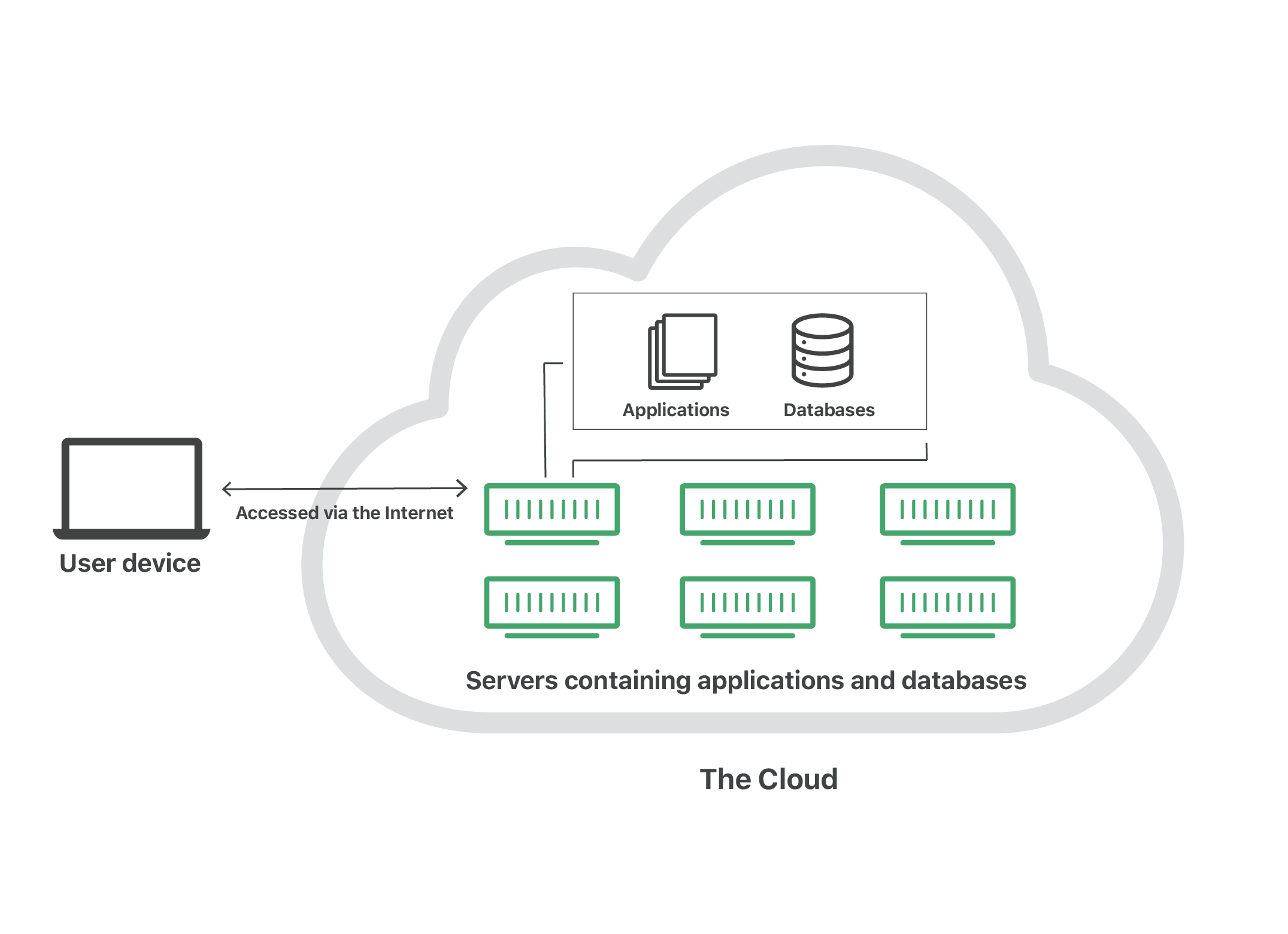
    “The cloud” refers to servers that are accessed over the Internet, and the software and databases that run on those servers. Cloud servers are located in data centers all over the world. By using cloud computing, users and companies do not have to manage physical servers themselves or run software applications on their own machines.

    What is the Cloud Diagram

    The cloud enables users to access the same files and applications from almost any device, because the computing and storage takes place on servers in a data center, instead of locally on the user device. This is why a user can log in to their Instagram account on a new phone after their old phone breaks and still find their old account in place, with all their photos, videos, and conversation history. It works the same way with cloud email providers like Gmail or Microsoft Office 365, and with cloud storage providers like Dropbox or Google Drive.

    For businesses, switching to cloud computing removes some IT costs and overhead: for instance, they no longer need to update and maintain their own servers, as the cloud vendor they are using will do that. This especially makes an impact for small businesses that may not have been able to afford their own internal infrastructure but can outsource their infrastructure needs affordably via the cloud. The cloud can also make it easier for companies to operate internationally, because employees and customers can access the same files and applications from any location.

    Is it worth paying for cloud storage, or could you get away with a free service?

    Moving your files, photos and documents online to the cloud is one of the smartest computing decisions you can make. With your most important files stored safely online, you don’t need to panic about your laptop seizing up or your external hard drive breaking down. Even if your computer is lost or stolen, you’ll still be able to access your documents or photo collection online through the cloud. But, with all the cloud storage options out there, how do you pick which one to use? Some make transferring files a seamless task, whereas others are more trying. Follow our advice to free up more of your precious time.  Below, we cover some key things to think about when choosing your cloud storage service, such as whether you should pay for it and features to look out

    That depends on how much storage space you need. Many of the big-name services offer between 2GB and 5GB for free, which isn’t much. But some offer more, including Google Drive, which gives you 15GB free of charge. If you want more space, you’ll need to pay an annual or monthly fee.  Of course, there’s nothing stopping you from setting up multiple free accounts and enjoying a sizeable combined amount of storage. But this could become confusing and annoying – and you probably don’t want to spend too much time going through all your accounts to find one specific document.

    Which cloud storage service features should I look out for?

    Not all cloud storage services offer the same functionality, so make sure you pick one with all the features you want. Here’s a list of some key ones to think about:

    • Multi-device access You can use most cloud storage services on your smartphone or tablet, as well as on your laptop or desktop. But check that a service has dedicated apps for your brand of tablet or smartphone.
    • Editing Surprisingly, some services don’t let you edit documents within cloud storage itself – instead, you open the file outside of the storage service, then it syncs automatically. Many give you the option of both, though, giving you a little more flexibility. Some cloud storage services let you edit pictures, too.
    • File sharing Most services let you share your files with other people – for instance, you might like to share some holiday snaps with your family. Some don’t, though, so consider whether it’s something you’d like to do
    • Security it’s imperative that the brands behind those services protect all the data they hold to withstand breaches from even the most devious attackers, so the best cloud storage services won’t accept weak passwords. It’s also good if two-factor authentication is available. This form of security requires you to enter your password, but then an extra code is sent to one of your personal devices (usually a phone), which you’ll then need to enter to log in.

    Comparison of the Best Free Online Cloud Storage

    Cloud Storage ProvidersBest ForStorage space plans
    iCloudApple Users (ipad, iphone)5GB, 50GB, 200GB & Unlimited
    DropboxLight data users.2GB, 1TB, 2TB, 3TB, Till Unlimited.
    Google DriveTeams & Collaboration15GB, 100GB, 200GB.. Till Unlimited.
    OneDriveWindows users5GB, 50GB, 1TB, 6TB, & Unlimited.
    No. of users per Cloud Storage Provider
    « Older posts Newer posts »

    © 2025

    Theme by Anders NorenUp ↑