
How to add videos to Google slides
From your Google photos
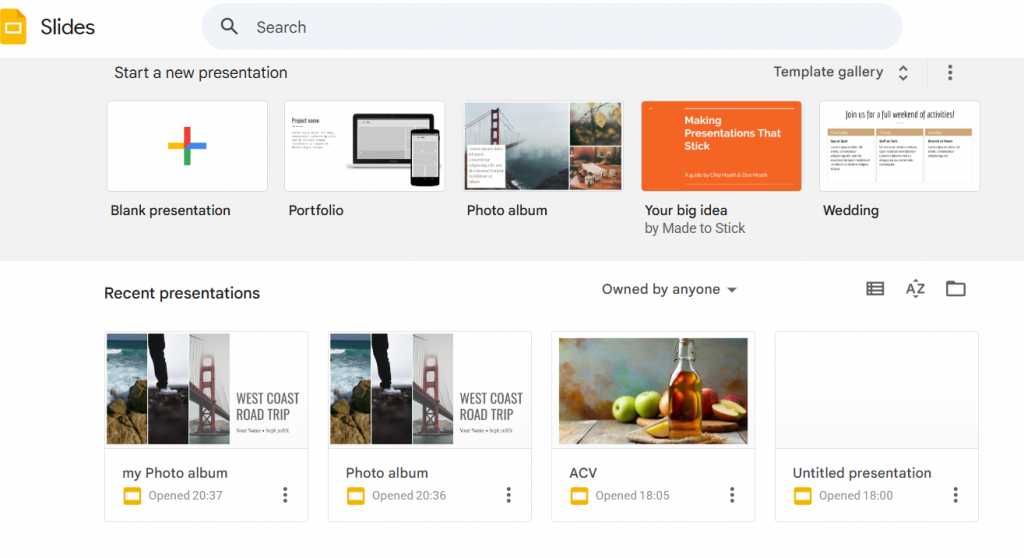
Google have not made it straightforward to insert your videos into a Google slides presentation, follow these steps:
- Add a new slide to your presentation
- Click on the slide and click ‘insert’ and ‘video’
- Now you will see the YouTube logo
- Click on the Google Drive tab, however this just shows your files on Google drive and not any photos/videos stored in Google photos
- Go to Google photos and find your videos
- Select the ones required by clicking the tick box on each video
- Now click the 3 dots on the top right and click ‘download’
- This creates a zipped file in your downloads folder
- Double click on this folder then click ‘extract all’, you can specify a folder in a new location and give it a meaningful name
- Now go to Google Drive, click on ‘new’ and ‘folder upload’
- Navigate to the folder you just created and click ‘upload’
- Once uploaded your videos will appear on Google Drive
- Now if you refresh your insert video screen on the presentation you will be able to select your video
- Click insert and the video will be inserted into your slide